Microsoft Events Log Analysis:Logon And Logoff Events Analysis
Key Event IDs for Logon and Logoff Analysis
Event IDs are the primary way to identify logon success, failure, or logoff. Here’s a summary table of the most relevant ones:
| Event ID | Description | When It Occurs | Key Use in Analysis |
|---|---|---|---|
| 4624 | An account was successfully logged on | Successful authentication (e.g., login to a machine or network resource) | Track successful sessions; correlate with logoff for duration. |
| 4625 | An account failed to log on | Failed authentication attempt | Identify reasons for failure (e.g., brute force attacks); monitor for patterns. |
| 4634 | An account was logged off | User or system initiates logoff sequence (may not always complete) | Match with 4624's Logon ID to calculate session duration; note if paired with 4647. |
| 4647 | User initiated logoff | Logon session is fully terminated (complements 4634) | Confirms complete logoff; useful for tracking full session lifecycle. |
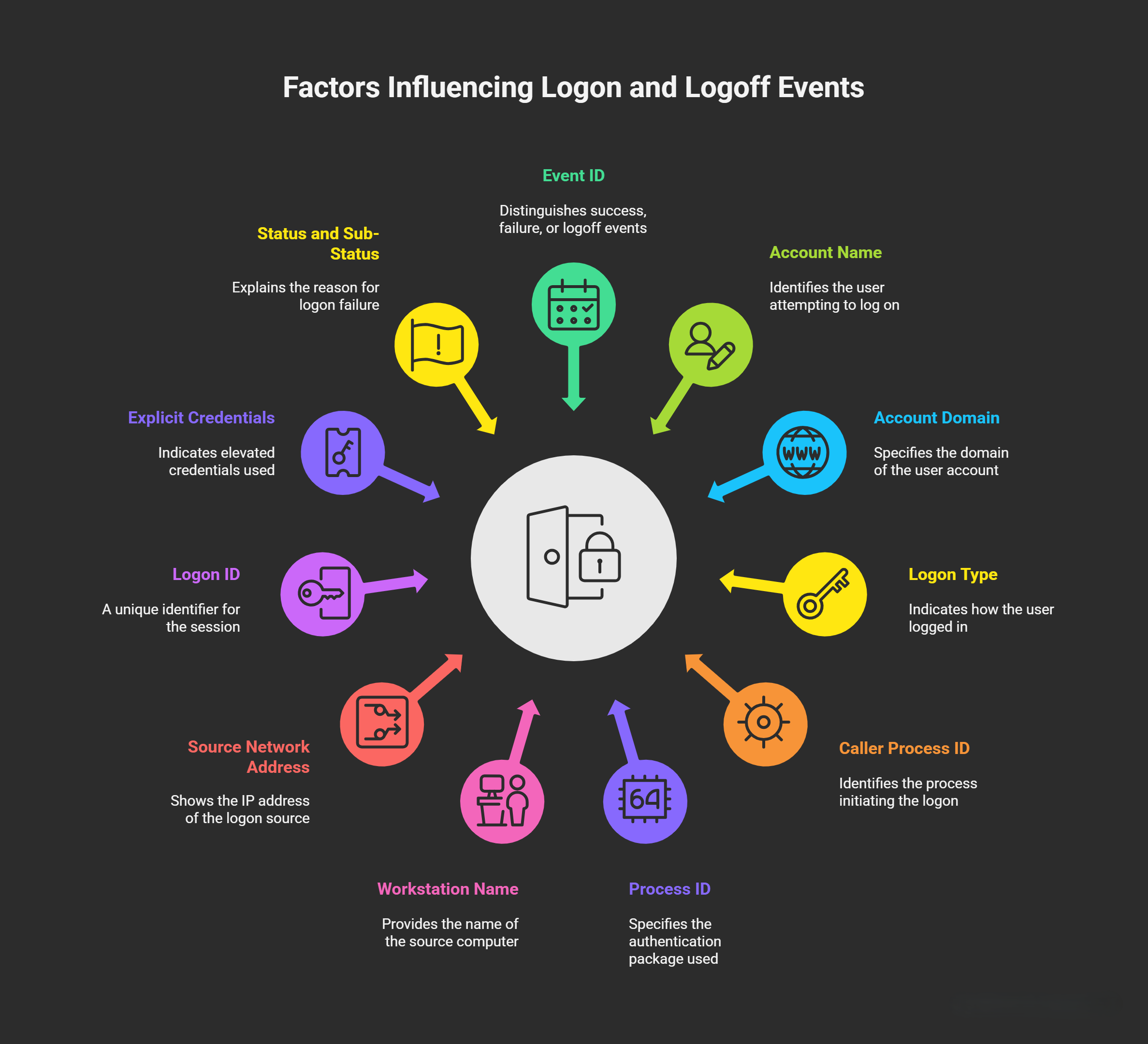
Common Fields in Logon and Logoff Events
- Event ID: It distinguishes success (4624) from failure (4625) or logoff (4634/4647). Always filter logs by these IDs for targeted analysis.
- Account Name: The username attempting to log on. In a domain environment (e.g., Active Directory), it’s often in the format
username(e.g.,kim.johnfor user Kim John in domainabc.com). The full account might appear asabc\kim.john orkim.john@abc.com. This field helps identify who is logging in; monitor for suspicious names (e.g., non-existent or external accounts). - Account Domain: Often paired with Account Name; specifies the domain (e.g., abc.com). If blank or “NT AUTHORITY,” it indicates a local system account.
- Logon Type: Indicates how the user logged in, which is crucial for understanding the context (e.g., local vs. remote access). Common types include:
- Type 2:Interactive (e.g., at the console or via Ctrl+Alt+Del).
- Type 3:Network (e.g., accessing a shared folder via SMB; no password prompt if trusted).
- Type 7:Unlock (after screen lock).
- Type 10:RemoteInteractive (e.g., RDP/Terminal Services).
- Type 9:NewCredentials (explicit credentials, like “run as administrator” for elevated privileges). High volumes of Type 3 events can indicate normal network activity but also potential lateral movement in attacks.3 Logon types are listed in the event details for 4624 and 4625.
- Caller Process ID (or Subject Process ID): The process ID (PID) and name of the process that initiated the logon attempt.For example:
winlogon.exefor console logins.lsass.exefor service or network logons.svchost.exefor system processes. This helps trace what software or service triggered the logon. In failures (4625), a suspicious PID might indicate malware.
- Process ID (Logon Process): Related to Caller Process ID; this is the authentication package used (e.g.,
NtLmSspfor NTLM,Kerberosfor domain auth,Winstafor workstation). It specifies the technical method of authentication. For instance,Kerberosis typical in domain environments likeabc.com example. - Workstation Name: The DNS or NetBIOS name of the source computer (e.g., fully qualified domain name like
myworkstation.abc.comfor the machine from whichkim.johnis logging in). This is especially useful for remote logons; it helps geolocate or verify the device (e.g., is it a company laptop?). In event details, it’s under “Workstation name” or “Computer Name.” - Source Network Address: The IP address of the machine or network source initiating the logon (e.g.,
192.168.1.100forkim.john’s workstation). For local logons, it might be empty or ::1 (localhost). This is critical for detecting external threats (e.g., logons from unknown IPs). Pair it with Workstation Name for full context. - Logon ID: A unique hexadecimal identifier for the session (e.g.,
0x12345678). Search for this ID in a successful 4624 event, then match it in the corresponding 4634/4647 logoff event to calculate session duration (e.g., subtract timestamps). This is invaluable for tracking user activity timelines. If durations are unusually short, it might indicate automated scripts or attacks. - Explicit Credentials (or RunAs/NewCredentials): Refers to scenarios where a user provides elevated credentials, often tied to Logon Type 9. For example “run as administrator”—this occurs when a program needs higher privileges (e.g., via
runascommand or UAC prompt). In the event, look for “Authentication Package” asNegotiateor similar. Monitor for abuse, as attackers might use this for privilege escalation. - Status and Sub-Status (for Failures Only): Exclusive to 4625 events; these codes explain why the logon failed. reasons like “password expired” or “incorrect password”. Here’s a table of common codes for clarity:
| Status Code | Sub-Status Code | Failure Reason | Possible Causes/Analysis Tips |
|---|---|---|---|
| 0xC000006D | 0xC000006A | Incorrect password | User mistyped; or brute-force attack (check for rapid repeats from same IP). |
| 0xC0000064 | N/A | User does not exist | could be a typo or attacker probing non-existent usernames (brute force). High volume suggests scanning attacks. |
| 0xC0000072 | N/A | Account disabled | Account locked due to policy, vacation, or compromise (e.g., attacker sold credentials on dark web). Investigate recent changes or external access attempts. |
| 0xC0000071 | N/A | Password expired | Routine policy enforcement; remind user to change password. |
| 0xC000015B | N/A | Logon time restriction | Attempt outside allowed hours; could be legitimate off-hours work or insider threat. |
| 0xC0000193 | N/A | Account locked out | Multiple failures; often from brute force. Review preceding 4625 events. |
These codes are in hexadecimal in the event XML/details. A surge in 4625 events (e.g., hundreds from one IP) often signals brute-force attacks. Always cross-reference with Source Network Address.
Analyzing Logon Success (Event ID 4624)
Focus on verifying legitimate access:
- Use Account Name, Workstation Name, and Source Network Address to confirm the user’s device and location (e.g.,
kim.johnfrommyworkstation.abc.comat192.168.1.100). - Note Logon Type for context (e.g., Type 3 for SMB shared folder access).
- Record Logon ID for later duration tracking.
- Anomalies: Unusual Logon Types (e.g., Type 10 RDP from external IP) or high volumes could indicate lateral movement in an attack.
Analyzing Logon Failure (Event ID 4625)
This is where security threats often show up:
- Prioritize Status/Sub-Status to pinpoint the reason (as in the table above).
- For non-existent usernames: Check frequency—if sporadic, likely user error; if patterned (e.g., sequential guesses), suspect brute force.
- For disabled accounts: investigate if the account was recently disabled (e.g., via AD logs) or if there’s evidence of compromise (e.g., prior successful logons from odd locations).
- Trace Source Network Address and Workstation Name to the origin—e.g., failures from unknown IPs suggest external attacks.
Tip: Filter for repeats from the same Source Network Address to detect automated attempts.
Analyzing Logoff Events (Event IDs 4634 and 4647)
These confirm session closure:
- Match Logon ID from 4624 to calculate duration (e.g., via timestamp difference:
Logoff Time - Logon Time). - Logon Type and Source details should match the original logon for consistency.
- If a 4634 appears without a 4647, the session might have been interrupted (e.g., crash or forced logoff).
- In logoff events, revisit the paired 4624/4625 to trace the session’s origin (Workstation Name/IP). This helps if a failure led to a short/aborted session—e.g., a brute-force attempt that partially succeeded then failed.
- Anomalies: Unexpected short sessions or logoffs from different locations than logon could indicate session hijacking.
Additional Tips
- Session Duration Calculation: Use PowerShell:
Get-WinEvent -FilterHashtable @{LogName='Security'; ID=4624,4634} | Where-Object {$_.Message -match 'Logon ID: 0x[0-9A-F]+'}then correlate IDs. Short durations (<1 minute) might be probes; long ones could be persistent access. - Common Pitfalls: High volumes of 4624/4634 (e.g., Type 3) are normal on file servers but monitor for spikes. RDP-related events (Type 10) are key for remote access investigations.
- Security Best Practices: Enable detailed auditing, use baselines to spot anomalies (e.g., via Microsoft Defender or Splunk), and correlate with other logs (e.g., 4672 for privilege use). For attacks, look for 4625 clusters followed by successful 4624 (e.g., password spraying).
- Tools for Deeper Dive: Event Viewer for basics; for advanced, use wevtutil or third-party parsers. If analyzing large logs, export to CSV and use Excel/Power BI for timelines.
This post is licensed under CC BY 4.0 by the author.