Linux Logging for SOC
Explore key Linux log sources and learn how to use them in your SOC triage.
Task 1 introduction
Task 1 serves as the introduction to the Linux Logging room. It highlights the growing importance of Linux in enterprise and cloud environments from traditional servers to containerized workloads making Linux log analysis a critical skill for SOC analysts investigating alerts and incidents. The task outlines the key learning objectives: exploring common authentication, runtime, and system logs; mastering relevant commands and avoiding typical pitfalls; understanding the powerful auditd subsystem for security event monitoring; and applying all concepts hands-on in the provided VM. This sets the foundation for practical, real-world Linux log investigation skills.
Task 2 Working With Text Logs
Task 2, “Working With Text Logs,” introduces the practical fundamentals of Linux logging for SOC analysts. It emphasizes that Linux servers log most events to plain-text files in /var/log (unlike Windows’ structured Event Logs), making them readable with basic tools but less standardized. The task highlights /var/log/syslog as the primary aggregated log file, demonstrates viewing it with cat and filtering with grep (e.g., for CRON jobs), and shows how to discover relevant logs by recursively grepping keywords like “auth”, “login”, or “session” across /var/log. It also warns of common pitfalls: log formats, locations, and availability vary across distributions (Debian/Ubuntu vs. RHEL/CentOS) and can be customized, so analysts must adapt to real-world inconsistencies. This task lays the groundwork for effectively triaging Linux alerts using command-line log analysis.
Use the /var/log/syslog file on the VM to answer the questions.
Q1: Which time server domain did the VM contact to sync its time?
Answer: ntp.ubuntu.com
We will use the command cat /var/log/syslog | grep timesync

As we can see from screenshot VM contacted 185.125.190.58 (ntp.ubuntu.com).
Q2: What is the kernel message from Yama in /var/log/syslog?
Answer: Becoming mindful.
we will use the command cat /var/log/syslog | grep Yama

Note: Don’t forget that The grep command in Linux is case sensitive by default (Yama ≠ yama).
Task 3 Authentication Logs
Task 3, “Authentication Logs,” focuses on the most critical log file for security investigations: /var/log/auth.log (or /var/log/secure on RHEL-based systems). Far beyond just logins, this file records session opens/closes (PAM events for local, SSH, cron, sudo/su),SSH successful/failed attempts (Accepted/Failed password or key), user management actions (useradd, usermod, userdel, passwd changes), and every command executed via sudo (logged with COMMAND=).The task provides real log examples and effective grep filters such as session opened session closed, sshd.(Accepted, Failed), (passwd, useradd, usermod, userdel), and COMMAND= to quickly surface suspicious activity like brute-force, unauthorized account creation,privilege escalation, or attempts to disable security tools. Mastering auth.log is essential for detecting identity abuse, lateral movement, and persistence in Linux environments.
Continue with the VM and use the /var/log/auth.log file.
Q1: Which IP address failed to log in on multiple users via SSH?
Answer: 10.14.94.82
we will use the command cat /var/log/auth.log | grep -E "sshd" | grep -E 'Accepted | Failed'
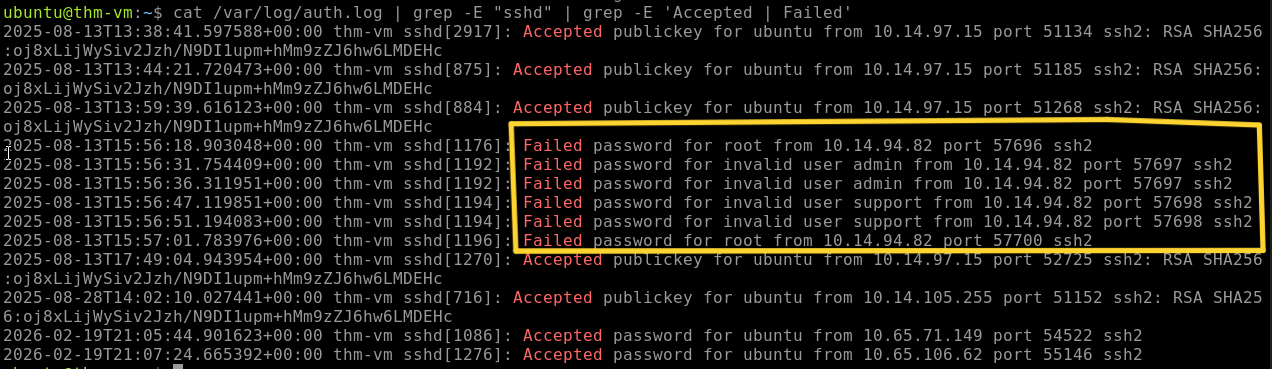
As we can see there are multiple failed attempts from IP 10.14.94.82
Q2: Which user was created and added to the “sudo” group?
Answer: xerxes
we will use the command cat /var/log/auth. log | grep -E '(useradd |usermod)'

At 18:04:10, a new user was created with name xerxes and added to the ‘Sudo’ group at 18:04:29.
Task 4 Common Linux Logs
Task 4, “Common Linux Logs,” provides an overview of additional log sources beyond authentication events. It covers generic system logs stored in /var/log including kern.log (kernel messages), syslog/messages (consolidated events), and package manager logs (dpkg.log/apt on Debian, dnf.log/yum.log on RHEL) noting their value in DFIR but limited daily SOC use due to high noise. The task highlights application-specific logs (e.g., Nginx access.log for web requests, database/mail/container logs) as higher-fidelity sources for security monitoring, with an example showing typical web access entries. Finally, it discusses Bash history (~/.bash_history and history command) as a record of interactive commands, but cautions that it misses non-interactive activity, is easily evaded (leading space, scripts, alternate shells), and is rarely used for routine SOC alerting or detection. This task broadens your awareness of the Linux logging landscape while reinforcing where to focus investigative effort.
According to the VM’s package manager logs,
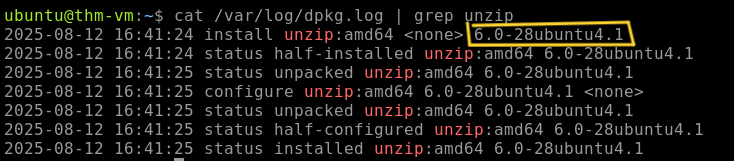
Q1: which version of unzip was installed on the system?
Answer: 6.0-28ubuntu4.1
we will use the command cat /var/log/dpkg.log | grep unzip
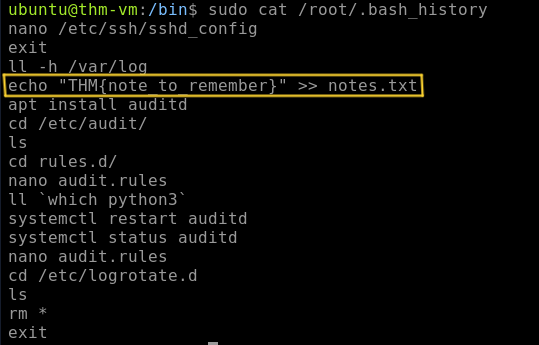
Q2: What is the flag you see in one of the users’ bash history?
Answer: THM{note_to_remember}
in the beginning, i guessed it might me the user xerxes from the last task. but when i checked its shell in the /etc/passwd file, it was /bin/sh, which doesn’t save history.

so i tried all possible users using the command cat /home/*/.bash_history .but also didn’t find anything. So i checked the root’s bash history and found the flag using the command sudo cat /root/.bash history
Task 5 Runtime Monitoring
Task 5, “Runtime Monitoring,” addresses a major limitation of standard Linux logs: they do not capture runtime events such as process creation, file modifications/deletions, or network activity, making it impossible to answer key SOC questions like “Which programs did this user run?” or “Who deleted these files?”. The task compares this gap to Windows (solved by Sysmon) and introduces system calls (syscalls) as the kernel interface every program must use for such actions (e.g., execve for launching binaries). With over 300 syscalls and near-unavoidable invocation, they form the foundation for modern EDRs and auditing tools. The task explains that by monitoring specific syscalls, you can gain deep behavioral visibility setting the stage for hands-on exploration of auditd (the Linux equivalent of Sysmon) in the next task. This conceptual overview is essential for understanding how to achieve runtime monitoring and detect malicious activity that standard logs miss.
Q1: Which Linux system call is commonly used to execute a program?
Answer: execve
As mention in the task explanation, execve is useto execute a program.
Q2: Can a typical program open a file or create a process bypassing system calls? (Yea/Nay)
Answer: Nay
As mentioned, whenever you need to open a file, create a process, access the camera, or request any other OS service, you make a specific system call.
Task 6 Using Auditd
Task 6, “Using Auditd,” introduces auditd as the built-in Linux tool for runtime monitoring via system call auditing filling the visibility gap in default logs for process execution, file changes, and more. The task focuses on reading and interpreting logs rather than rule creation, showing how rules (in /etc/audit/rules.d/) use keys (e.g., “proc_wget”, “file_sshconf”) for filtering. Examples demonstrate ausearch -i output for wget downloads (revealing PROCTITLE, CWD, EXECVE, SYSCALL fields like pid/ppid, auid/uid, exe, tty) and file modifications (e.g., nano on /etc/ssh/sshd_config). Key fields are explained: auid tracks original login user, exe gives binary path, and keys simplify hunting. The task notes auditd’s verbosity and SIEM challenges, recommending alternatives like Sysmon for Linux, Falco, Osquery, or commercial EDRs all built on syscall monitoring. It concludes with a practical threat-hunting exercise using auditd process creation logs in the VM to uncover malicious activity, reinforcing auditd’s role in detecting post-compromise behaviors.
Q1: When was the secret.thm file opened for the first time? (MM/DD/YY HH:MM:SS)
Note: Access to this file is logged with the “file_thmsecret” key.
Answer: 08/13/25 18:36:54
Using the note given, we will use the command ausearch -i -k file_thmsecret | grep secret.thm

As we can see at 08/13/25 18:36:54, secret.thm was opened.
Q2: What is the original file name downloaded from GitHub via wget?
Note: Wget process creation is logged with the “proc_wget” key.
Answer: naabu_2.3.5_linux_amd64.zip
Also using the note, we will use the command ausearch -i -k proc_wget | grep github

Q3: Which network range was scanned using the downloaded tool?
Note: There is no dedicated key for this event, but it’s still in auditd logs.
Answer: 192.168.50.0/24
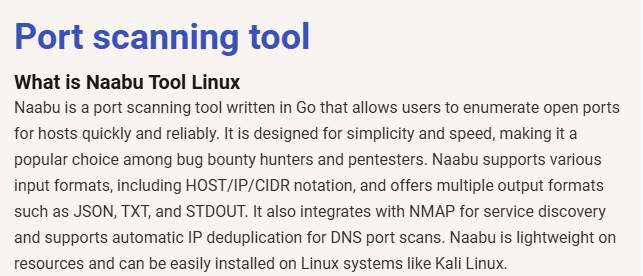
I searched about the tool that was downloaded from GitHub from the last question. I found it is a Port scanning tool.
So i searched for it using the command ausearch -i | grep naabu and found the network range.
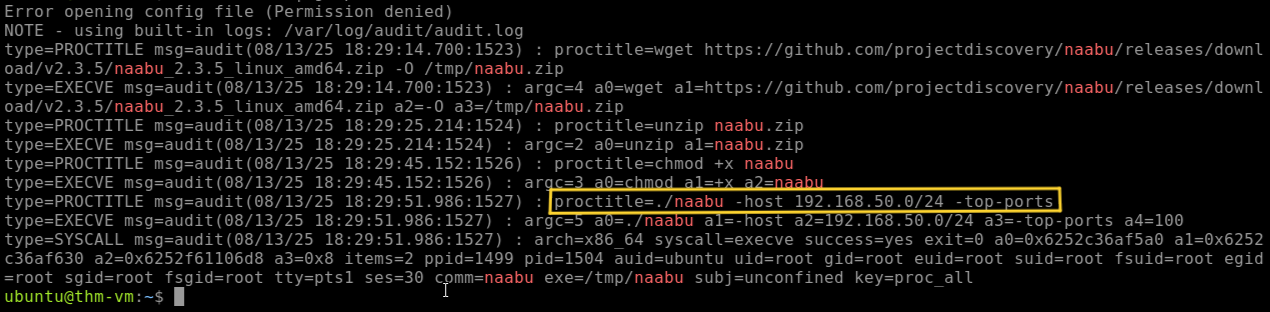
As we can see the full command used to scan the network range: ./naabu -host 192. 168.50. 0/24 -top-ports
I hope this writeup has helped you gain a clearer understanding of Linux logging and made your SOC investigations a little easier. Thank you for reading! 😊